Python Basics
How to find the Python Installed Version
CMD> python --version
CMD> python3 --version

$ python --version
$ python3 --version

$ which python
$ which python3
How to find Python Installed Location
Suppose if you have installed Python in two different locations in your system, then how will you find which python you are invoking? How will you find the Python Installed Path?
Open Windows Command Prompt / Anaconda Command Prompt / Linux Terminal:
Simply type "python" which will take you to python command prompt.
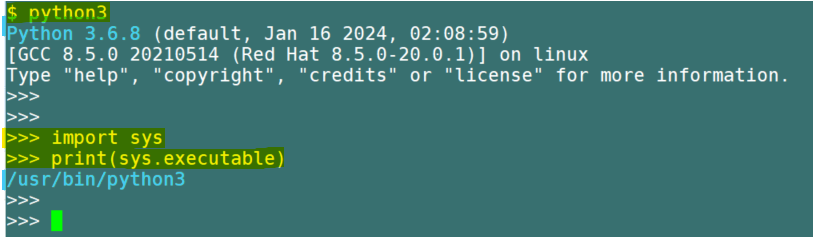
Then, inside the python prompt, run the below commands:
$ python (or) python3
>>> import sys
>>> print(sys.executable) # This will tell you the Python Installed Location
How to quit from Python prompt
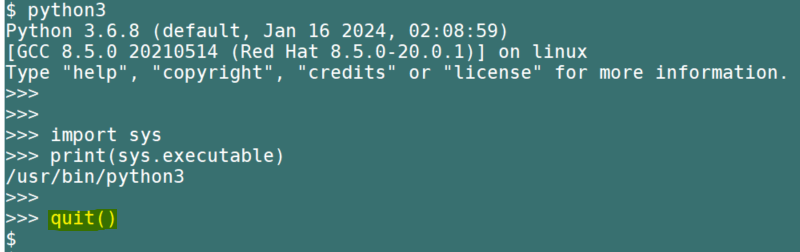
Simply type “quit()” in the Python Prompt
How to find the list of Installed Libraries and its Version in Python
CMD> pip3 list
$ pip3 list
How to install a Library in Python
General Syntax:
$ pip install <library_name>==<version_no>	◄◄ To install a specific version, use "==" and "version no"
$ pip install <library_name> ◄◄ To install to the latest version, just remove "==" and "version no"

$ pip3.12 install <library_name>==<version_no>	◄◄ To install a specific version, use "==" and "version no"
$ pip3.12 install <library_name> ◄◄ To install to the latest version, just remove "==" and "version no"

Real Examples:
$ pip3.12 install pandas==2.1.1	◄◄ To install a specific version, use "==" and "version no"
$ pip3.12 install pandas ◄◄ To install the latest version, just remove "==" and "version no"

$ pip install --upgrade openai	◄◄ To install or upgrade the library, use this command.
$ pip3 install --upgrade openai	◄◄ To install or upgrade the library, use this command.
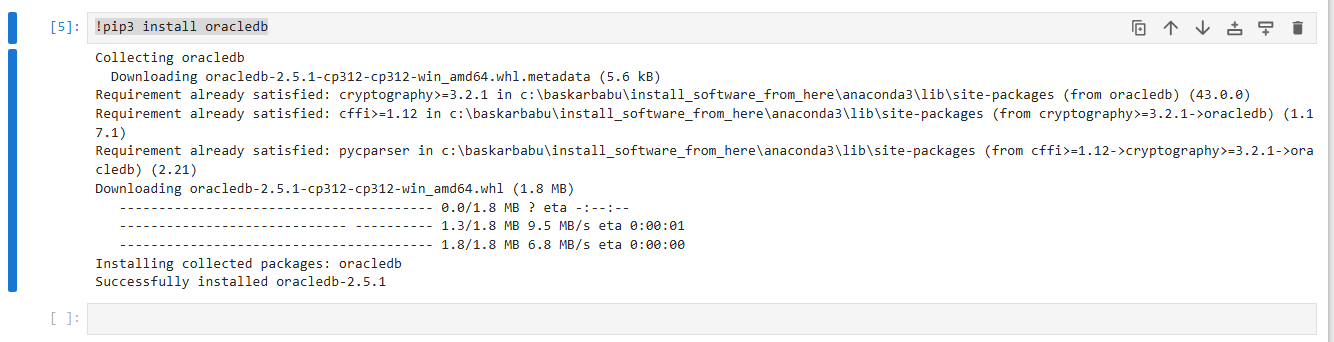
How to Install a Python Library from Jupyter Notebook?
!pip3 install oracledb
How to Create and Activate a new Python Virtual Environment for your new Projects
Once you have Python installed, it is a good practice to create a new virtual python environment for your new projects. Say, for example, if you want to work on OpenAI Python Project, then create a new virtual environment for downloading OpenAI related libraries so that it won't impact your base Python installation libraries.
In general, the Virtual environments provide a clean working space for your Python packages to be installed so that you do not have conflicts with other libraries you install for other projects.
To create a virtual environment, Python supplies a built in "venv" module which provides the basic functionality needed for the virtual environment.
Running the command below will create a virtual environment named "openai-env" inside the current folder
$ python -m venv openai-env ◄◄ Here, "venv" is a keyword. "openai-env" is your own name. You can give any name for the virtual environment.
$ python -m venv vector-project ◄◄ You are just creating a virtual environment in the name "vector-project".
Once you’ve created the virtual environment, you need to activate it.
On Windows, run:
CMD> openai-env\Scripts\activate ◄◄ Here "openai-env" is the virtual environment name which we created in above step.

On Unix or MacOS, run:
$ source openai-env/bin/activate ◄◄ Here "openai-env" is the virtual environment name which we created in above step.
You should see the terminal / command line interface change slightly after you active the virtual environment, it should now show "openai-env" to the left of the cursor input section.
Popular Python IDEs
colab.research.google.com
Jupyter Notebook
Visual Studio Code
IDLE
PyCharm Professional
To Install Python
Anaconda --> This will install Python, Jupyter and Other things.
https://www.python.org/
To get help in Python
help(package_name.function_name)
or package_name.function_name<question_mark> example: random.randint?
To freeze / lock the Python Environment and reconstruct it
pip freeze > requirements.txt
python3 -m venv myvenv
source myvenv/bin/activate
pip install -r requirements.txt
To check whether the Python environment is consistent or not
pip check
pip3 check
-- You should see the message "No broken requirements found."
To check whether the libraries are already installed and whether it meets the required version or not:
## Without installing, you can verify whether the libraries have been already installed or not and if already installed, whether it meets the required version or not.


pip install -r requirements.txt --dry-run

or use below sample script

python3 -c "import sys, oracledb, streamlit; print(sys.executable); print(oracledb.__version__); print(streamlit.__version__)"

or use below sample script

python3 -c "
import re
import importlib.metadata as m

with open('requirements.txt') as f:
    lines = f.readlines()

for line in lines:
    line = line.strip()
    if not line or line.startswith('#'):
        continue
    # extract package name (before any version specifier like >=, ==, <, etc.)
    pkg = re.split(r'[<>=!~;]', line)[0].strip()
    if not pkg:
        continue
    try:
        print(f'{pkg}: {m.version(pkg)}  (required: {line})')
    except m.PackageNotFoundError:
        print(f'{pkg}: NOT INSTALLED  (required: {line})')
"

or use below sample script

cat > check_reqs.py << 'EOF'
import re
import subprocess
import sys
import importlib.metadata as m

missing = []

with open('requirements.txt') as f:
    lines = f.readlines()

for line in lines:
    line = line.strip()
    if not line or line.startswith('#'):
        continue
    pkg = re.split(r'[<>=!~;]', line)[0].strip()
    if not pkg:
        continue
    try:
        version = m.version(pkg)
        print(f'{pkg}: {version}  (required: {line})  -> MET')
    except m.PackageNotFoundError:
        print(f'{pkg}: NOT INSTALLED  (required: {line})')
        missing.append(line)

if missing:
    print(f"\nInstalling {len(missing)} missing package(s): {', '.join(missing)}")
    subprocess.check_call([sys.executable, '-m', 'pip', 'install', *missing])
else:
    print("\nAll required packages are installed and meet version constraints.")
EOF

python3 check_reqs.py
To check whether the OCI API Signing Keys are accessible via Python OCI
python3 - <<'PY'
import os
import oci

config = oci.config.from_file("/home/oracle/.oci/config", "DEFAULT")
oci.config.validate_config(config)

key_file = os.path.expanduser(config["key_file"])

print("OCI config validation: PASSED")
print("Region:", config["region"])
print("Private key exists:", os.path.isfile(key_file))
print("Private key readable:", os.access(key_file, os.R_OK))
PY
To check whether the OCI GenAI Agent Endpoint OCID is accessible or not:
python3 - <<'PY'

# Place config file contents as below in /home/oracle/.oci/config
# [DEFAULT]
# user=
# fingerprint=
# tenancy=
# region=
# key_file=/home/oracle/.oci/api_private_key.pem


import json
import oci


## Below is my GenAI Agent Endpoint OCID (Created in OCI Console)
ENDPOINT_OCID = (
    "ocid1.genaiagentendpoint.oc1.iad."
    "amaaaaaazxsy2naa3n4j25pne2uhxnb4l72rq"
)

config = oci.config.from_file("/home/oracle/.oci/config", "DEFAULT")

client = oci.generative_ai_agent_runtime.GenerativeAiAgentRuntimeClient(
    config,
    timeout=(10, 120),
)

session_response = client.create_session(
    create_session_details=oci.generative_ai_agent_runtime.models.CreateSessionDetails(
        display_name="streamlit-connectivity-test",
        description="Temporary session for Agent Endpoint validation",
    ),
    agent_endpoint_id=ENDPOINT_OCID,
)

session_id = session_response.data.id

print("Session created:", session_id)

chat_response = client.chat(
    agent_endpoint_id=ENDPOINT_OCID,
    chat_details=oci.generative_ai_agent_runtime.models.ChatDetails(
        session_id=session_id,
        should_stream=False,
        user_message=(
            "EMAIL_OPS\n"
            "Campaign CMP-2048 has a 16.4% hard-bounce rate and "
            "31 failed authentication events. "
            "In two sentences, state the recommended action."
        ),
    ),
    retry_strategy=oci.retry.DEFAULT_RETRY_STRATEGY,
)

result = oci.util.to_dict(chat_response.data)

print("HTTP status:", chat_response.status)
print("\nAgent response JSON:")
print(json.dumps(result.get("message", {}), indent=2))
PY
To check whether the ADB database is accessible via Python code:
## Note: You need to have an .env file with all the relevant parameter values.

# ----------------------------------------------------------------
# My .env contents are:
# Autonomous Database (use a TCPS wallet in production)
# DB_USER=BASBABU_GENAI_OML_VS
# DB_PASSWORD=
# DB_DSN=adb23ai_high
# TNS_ADMIN=/home/oracle/all_my_adb_wallets/ADB23AISL_WALLET
# DB_WALLET_PASSWORD=
# OCI_EMBEDDING_CREDENTIAL=OCI_GENAI_BASBABU_CRED
# OCI_EMBEDDING_MODEL=cohere.embed-v4.0
# OCI_EMBEDDING_URL=https://inference.generativeai.us-ashburn-1.oci.oraclecloud.com/20231130/actions/embedText
# ----------------------------------------------------------------

import os
import oracledb
from dotenv import load_dotenv

load_dotenv()


# Forces python-oracledb to use the locally installed Oracle Client.
# The wallet directory must contain tnsnames.ora, sqlnet.ora, and cwallet.sso.
oracledb.init_oracle_client(
    config_dir=os.environ["TNS_ADMIN"]
)

print("Thin mode:", oracledb.is_thin_mode())  # Must print False

connection = oracledb.connect(
    user=os.environ["DB_USER"],
    password=os.environ["DB_PASSWORD"],
    dsn=os.environ["DB_DSN"],
)

with connection.cursor() as cursor:
    cursor.execute("""
        SELECT
            SYS_CONTEXT('USERENV', 'DB_NAME'),
            SYS_CONTEXT('USERENV', 'CURRENT_SCHEMA')
        FROM dual
    """)
    print("Connected:", cursor.fetchone())

connection.close()